Manual Add Device
By configuring the device IP address and authentication credentials, servers, switches, and other devices can be manually onboarded to the platform for management.
This guide describes the process for a single device. For rapid batch onboarding, please refer to Batch Add Device.
-
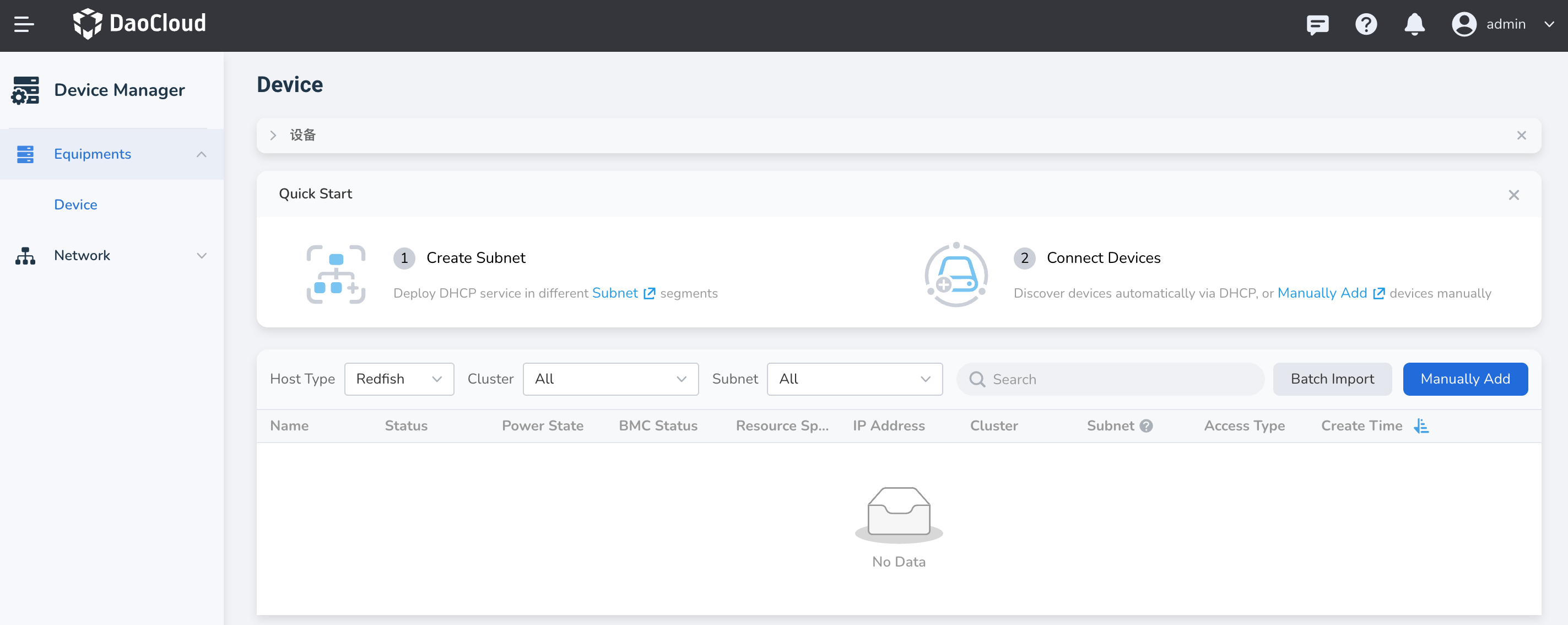
In the left navigation bar, click Device to enter the device list, then click the Manual Add button at the top right corner of the page.
-
Fill in the configuration including device name, IP address, port, host type, and username/password.
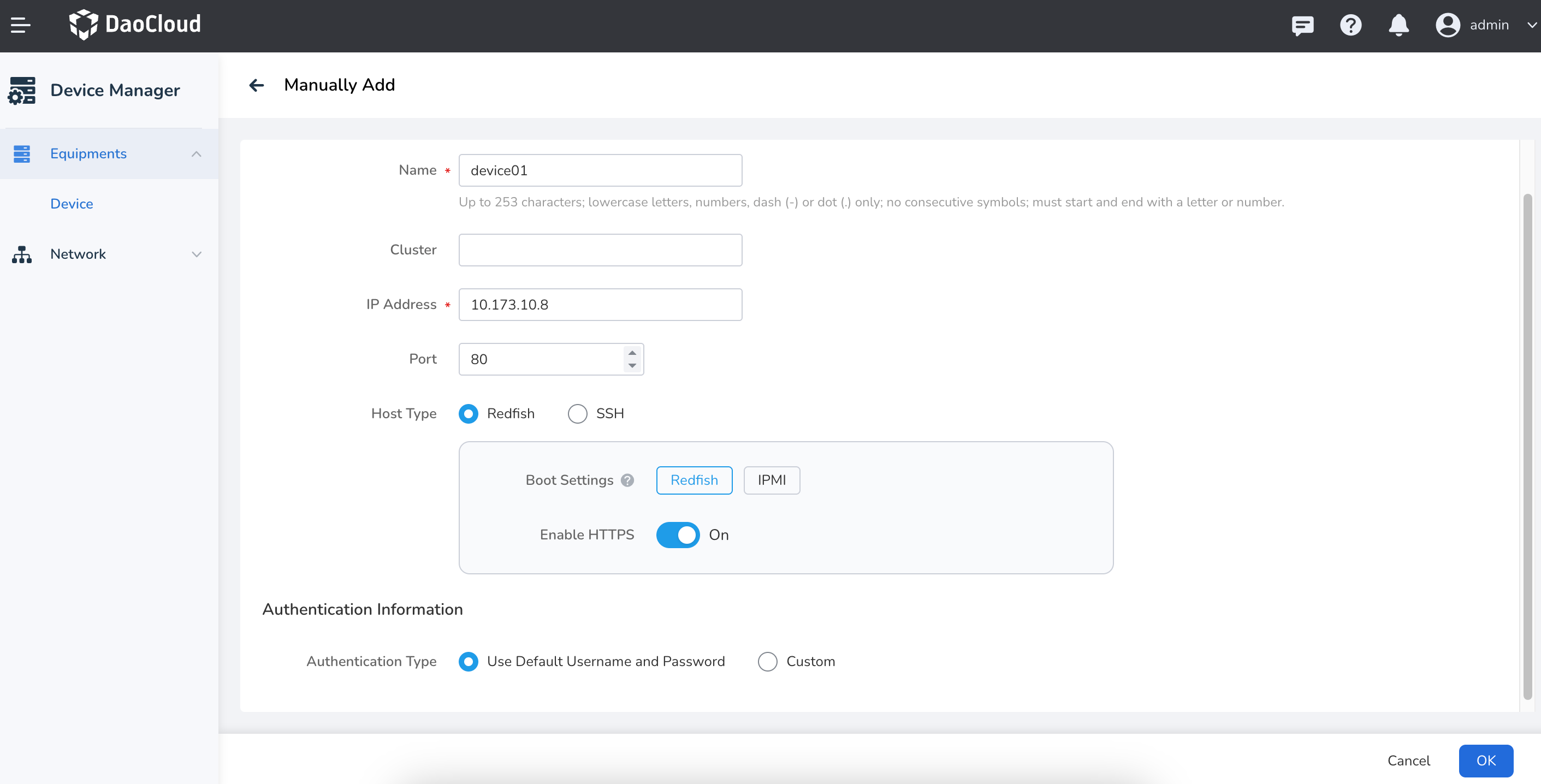
Field Required Description Name Yes Up to 253 characters; lowercase letters, numbers, dash (-), or dot (.) only; no consecutive symbols; must start and end with a letter or number. Cluster No Optional. Assign devices to specific groups based on device type or other criteria for easier management. IP Address Yes Management IP address of the device. Port Yes Port used to establish the connection with the device. Host Type Yes Supports Redfish or SSH. If Redfish is selected, additional PXE boot and HTTPS settings are required. PXE Boot Configuration Conditional Required when using Redfish. Used to load the OS image over the network at startup; select Redfish or IPMI protocol based on your environment. Enable HTTPS Conditional Required when using Redfish. Specifies whether to use HTTPS for device communication. Authentication Info - Use default username/password Optional Automatically uses the credentials configured during Topohub Helm deployment. Authentication Info - Custom Optional Manually enter the username and password. -
After completing the configuration, click OK to finish onboarding the device. You will automatically return to the device list.
Next step: Manage Devices